
Difference between revisions of "Sagemcom 2864 Configuration"
(copyedit) |
(organization , more text) |
||
| Line 4: | Line 4: | ||
This is the procedure NCF uses to configure a Sagemcom 2864 modem out of the box or after a factory reset. | This is the procedure NCF uses to configure a Sagemcom 2864 modem out of the box or after a factory reset. | ||
== | ==Getting started== | ||
# Plug the power connector into the Sagemcom 2864 and plug the other end into an AC wall jack. | # Plug the power connector into the Sagemcom 2864 and plug the other end into an AC wall jack. | ||
##'''Note''': there is no "power on/off" switch on the Sagemcom 2864. | ##'''Note''': there is no "power on/off" switch on the Sagemcom 2864. | ||
| Line 13: | Line 13: | ||
##'''user:''' admin | ##'''user:''' admin | ||
##'''password:''' admin | ##'''password:''' admin | ||
If the modem was previously configured for someone, the password would be the previous user's DSL-Password. If it is unknown then do a reset to factory default, using a paper-clip in the reset hole on the back. Hold for 15 seconds to reset. The user name and password will now be as above. | If the modem was previously configured for someone, the password would be the previous user's DSL-Password. If it is unknown then do a reset to factory default, using a paper-clip in the reset hole on the back. Hold for 15 seconds to reset. The user name and password will now be as above. | ||
==Entering the configuration information== | |||
{{:Quick Facts (Sagemcom DSL modem)}} | |||
When the modem interface appears in the browser, proceed as follows: | When the modem interface appears in the browser, proceed as follows: | ||
| Line 38: | Line 40: | ||
#Confirm "DHCP status" is "Enabled" | #Confirm "DHCP status" is "Enabled" | ||
#Click "save" if changed | #Click "save" if changed | ||
The modem should now connect, although it may take several minutes to complete connection. Onec on line it is recommended that you carry out two tests: | |||
*a [[Speed test (DSL)|speed test]] | |||
*a security and firewall test with [https://www.grc.com/x/ne.dll?bh0bkyd2 Shields Up] | |||
==Screenshots== | ==Screenshots== | ||
Revision as of 12:48, 2 March 2014

The Sagemcom 2864 is the sole modem authorized for use on service over 25 MB/s on networks using Bells' DSL infrastructure. NCF sells these modems for members on 25 MB and faster service.
This is the procedure NCF uses to configure a Sagemcom 2864 modem out of the box or after a factory reset.
Getting started
- Plug the power connector into the Sagemcom 2864 and plug the other end into an AC wall jack.
- Note: there is no "power on/off" switch on the Sagemcom 2864.
- Note: the Sagemcom 2864 takes a long time to boot up, as much as five full minutes
- Connect an Ethernet LAN cable to one of the ports and the other end to your computer
- In your browser's address bar, enter the IP address for the modem interface page: 192.168.2.1
- If the modem is fresh from the factory, use the default user name and password to gain access:
- user: admin
- password: admin
If the modem was previously configured for someone, the password would be the previous user's DSL-Password. If it is unknown then do a reset to factory default, using a paper-clip in the reset hole on the back. Hold for 15 seconds to reset. The user name and password will now be as above.
Entering the configuration information
| DSL Quick Configuration Info
(Sagemcom DSL modems) | |
|---|---|
| Modem Web Interface | http://192.168.2.1 |
| Modem login | Username: admin
Password: (see 'password' below) |
| DSL username | (eg. aa999@ncf.ca) |
| DSL Password | Starts with 'ncf' (not the same
as your NCF Start Page login) |
| Firewall | Enabled by default (recommended) |
| Wireless | If enabled, WPA2-PSK (AES) |
When the modem interface appears in the browser, proceed as follows:
- Select "Home→Account" settings
- Set a new admin password by entering the existing password ("admin") and your new password. Note: by default NCF uses your DSL password here.
- Click "save"
- Select "Settings→Internet"
- Enter your user id (like "aa001@ncf.ca" - don't forget the "@ncf.ca" or it won't connect) and your DSL password
- Click "save"
- Select "Settings→Wireless"
- "Primary Wireless Network" should be "enabled"
- "Broadcast Primary SSID" should be "enabled"
- Note: The SSID is the identification of the network that is broadcast. NCF sets this to "NCF" and the three digits from your membership number
- Note: Any identification can be used, but it is recommended that you do not set an id that identifies your name or your home's address
- "Security mode", confirm "WPA2-PSK (AES)"
- "Guest Wireless Network", confirm "disabled"
- Click "save"
- Select "Settings→Advanced Settings"
- Confirm "WAN Mode" is "Auto"
- Click "save" if changed
- Select "Settings→Network"
- Confirm "DHCP status" is "Enabled"
- Click "save" if changed
The modem should now connect, although it may take several minutes to complete connection. Onec on line it is recommended that you carry out two tests:
- a speed test
- a security and firewall test with Shields Up
Screenshots
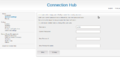
"Home→Account"
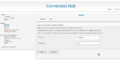
"Settings→Internet"
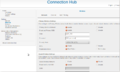
"Settings→Wireless"
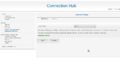
"Settings→Advanced Settings"
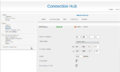
"Settings→Network"


