
Difference between revisions of "Multifactor Authentication"
| (2 intermediate revisions by the same user not shown) | |||
| Line 19: | Line 19: | ||
# For the Authenticator app, click Set Up. Then scan the QR code using your mobile phone and enter the code provided by the app. | # For the Authenticator app, click Set Up. Then scan the QR code using your mobile phone and enter the code provided by the app. | ||
The next time you log in to your NCF account, you'll need to use your password along with the code generated by your preferred method. | The next time you log in to your NCF account, you'll need to use your '''password''' along with the '''code''' generated by your preferred method. | ||
To '''disable''' this feature, log in to your NCF account, click on [https://auth.ncf.ca/en/2fa/settings/ Two-Factor Authentication]', and then click "Disable 2FA." | |||
=Images= | =Images= | ||
{{Template:Back_to_the_Top}} | {{Template:Back_to_the_Top}} | ||
<gallery mode="slideshow"> | <gallery mode="slideshow"> | ||
File:NCF_Account_Options.png|frameless|634x634px|Step 2 | |||
File:Two_Factor_Authentication.png|frameless|634x634px|Step 3 | File:Two_Factor_Authentication.png|frameless|634x634px|Step 3 | ||
File:Email_Authentication.png|frameless|634x634px|Step 4 | File:Email_Authentication.png|frameless|634x634px|Step 4 | ||
| Line 31: | Line 34: | ||
==See Also== | ==See Also== | ||
{{Template:Back_to_the_Top}} | {{Template:Back_to_the_Top}} | ||
*[[Email]] | |||
*[https://www.ncf.ca/en/members/preferences/ Change my Account Preferences] | |||
*[[Zimbra]] | |||
Latest revision as of 16:48, 14 August 2026
Introduction
Your NCF account comes with Two-Factor Authentication (2FA), an extra layer of security that requires a second form of verification in addition to your password. This helps prevent unauthorized access and reduces the risk of security breaches.
Even if someone finds out your password, they still can't get into your account without also having access to that second code. This makes it much harder for hackers or strangers to break in, even if your password gets leaked or stolen.
NCF offers two options to enable this feature on your account. The first is using an alternate email account, where you will receive a verification code when attempting to log in to your account. If you don't have a second email account, you can use an Authenticator App on your mobile phone to get the code.
Email Verification
When you sign in, a one-time verification code is sent to your alternate email address. You'll need to enter this code (typically 6 digits) to complete the login. One advantage of this method is that you're not required to install additional apps, you only need access to your alternate email.
Authenticator App
You link your NCF account to an authenticator app (e.g., Google Authenticator or Microsoft Authenticator). The app generates a time-based one-time password (TOTP) that refreshes every 30 seconds. You enter this code at login. One advantage of this method is that it's considered more secure than email verification, as the codes are harder to intercept. Please note that if you lose your device or cannot access the authenticator app's code, regaining access can be more difficult, and you will need to contact support for further assistance.
Setup Steps
- Log in to your NCF account. StartPage
- Under account options, click on Two-Factor Authentication.
- Select one of the available options (Email verification or Authenticator app).
- For email, enter the alternate email address where you will receive the code.
- For the Authenticator app, click Set Up. Then scan the QR code using your mobile phone and enter the code provided by the app.
The next time you log in to your NCF account, you'll need to use your password along with the code generated by your preferred method.
To disable this feature, log in to your NCF account, click on Two-Factor Authentication', and then click "Disable 2FA."
Images
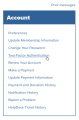
Step 2
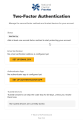
Step 3

Step 4
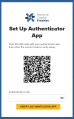
Step 5


