
Sercomm DG4244

Sold from March 2026
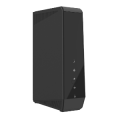
The Sercomm DG4244 is a DOCSIS 3.1 cable modem/gateway Wi-Fi 6 (802.11ax). It's backward-compatible with DOCSIS 3.1/3.0/2.0/1.1/1.0, so it works on both next-generation and legacy cable plants.
Key specifications
- DOCSIS: 3.1 / 3.0 / 2.0 / 1.1 / 1.0
- Voice: 2 phone ports
- Wi-Fi: 802.11ax, 2.4 GHz (4x4) and 5 GHz (4x4)
- Wired ports: 1x Gigabit/2.5G LAN port, 3x Gigabit LAN ports, 1x USB 2.0
- Web user interface: http://192.168.0.1/
- Username: admin
- Password: alphanumeric code printed on the label on the back/bottom of the modem, or the password you created when logged in for the first time to the modem.
- Backup power: the device supports an optional battery backup unit (sold separately). On battery, only partial DOCSIS channels and VoIP remain active, Wi-Fi, and USB are disabled.
Network Eligibility
The Sercomm DG4244 available from NCF has been certified by the following cable network vendors for operation on their infrastructure:
- Rogers (Ontario)
Modem Lights
The operational status of the DG4244 Gateway is shown by the LED indicators on the front panel. These indicators display the status of the power, WiFi, WPS, Internet, Phone, LAN1G and LAN2.5G. During normal operation, the LED indicators may remain solid green or flash green, depending on the activity or connection status. The following image summarizes the LED behavior.

First login and initial password setup
When you first log in to the DG4244, you'll be prompted to create a new password.
- Open a web browser and go to http://192.168.0.1.
- Log in with your admin credentials. If they haven't been changed yet, the default username is admin and the default password is the alphanumeric code printed on the label on the back/bottom of the modem.
- On first login, you'll be prompted to create a new password. It must:be 8 - 20 characters, contain at least one lowercase letter, one number, and either one uppercase letter or one special character and no spaces between the characters.
- Save the new password, then log in again using it.
WiFi configuration (Private Network)
- Login to the modem
- In the left-hand menu, click Connection, then Wi-Fi.
- Under Private Wi-Fi Network, you'll see two networks listed by default, one for 2.4 GHz and one for 5 GHz.
- Click Edit next to the first network (2.4GHz) to configure it. Set the following:
- SSID: Your custom network name
- Mode: 802.11 /g/n/ax
- Security mode: WPA2-PSK(AES)
- Channel selection: Automatic
- Channel Bandwidth: 20MHz
- Network password: Your custom Wi-Fi password
- Click on save settings
- Go back to the Private Wi-Fi Network list and repeat the steps above for the 5 GHz network, using the same SSID and password as the 2.4 GHz network.
Note: Using the same SSID and password on both bands lets client devices autoselect 2.4 GHz or 5 GHz based on signal strength (band steering), rather than treating them as separate networks. If you'd prefer to keep the 5 GHz network separate and selectable, add "5GHz" to the end of the SSID (e.g., YourNetwork-5GHz) for easy recognition. The password can stay the same for both networks either way.