
DG4244 WiFi Channels
Jump to navigation
Jump to search
Sercomm DG4244
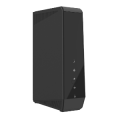

Sold from March 2026
Changing Wi-Fi Channels
By default, the Sercomm DG4244 Gateway automatically selects the Wi-Fi channel with the least congestion and interference for both the 2.4 GHz and 5 GHz frequency bands. If necessary, you can manually select a Wi-Fi channel by following the steps below:
- Open a web browser and go to http://192.168.0.1
- Log in using your administrator credentials.
- From the left-hand menu, select Connection, then click Wi-Fi.
- Locate the Channel Selection option and set it to Manual.
- From the Channel drop-down menu, select the desired Wi-Fi channel.
- Click Save Settings to apply the changes.
Note: To help determine the best Wi-Fi channel for your location, you can use a Wi-Fi analyzer application. These tools scan nearby wireless networks and can help identify channels with less congestion and interference.